> ## Documentation Index
> Fetch the complete documentation index at: https://langchain-5e9cc07a-preview-javaex-1765204202-a1f8093.mintlify.site/llms.txt
> Use this file to discover all available pages before exploring further.
# Configure prompt settings
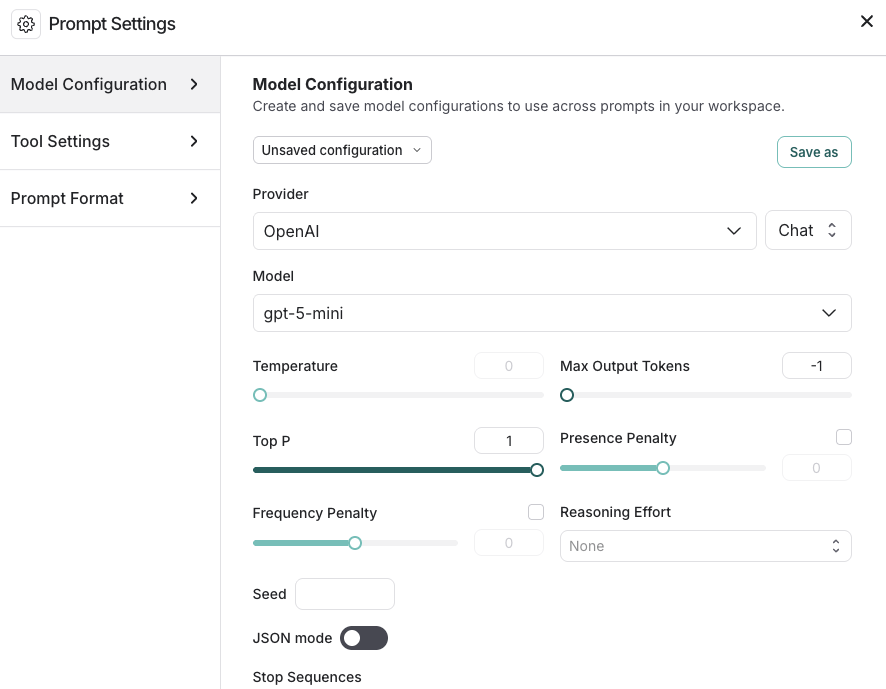
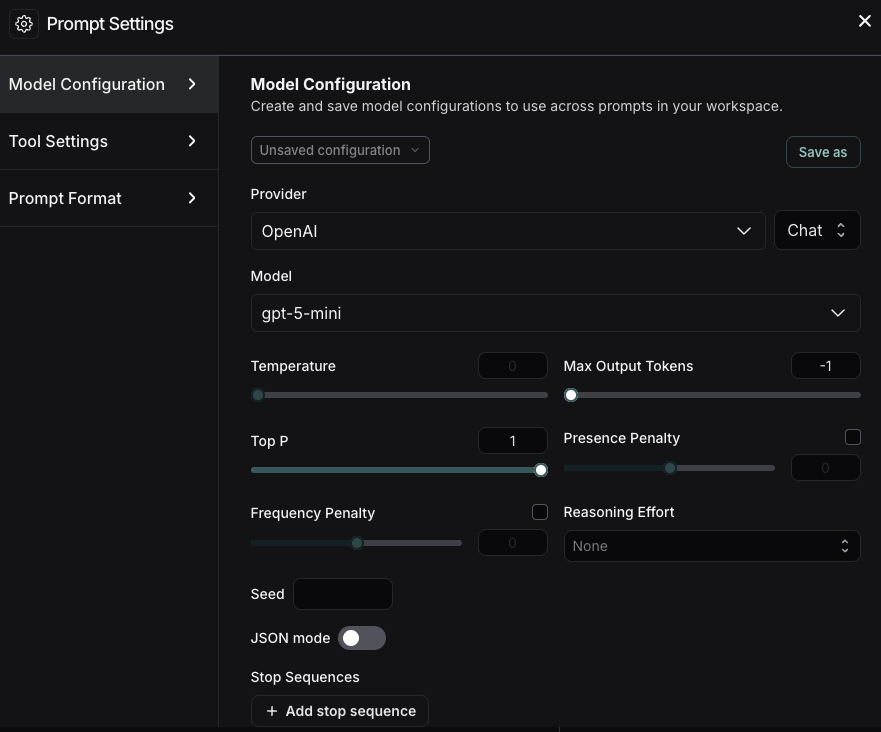
The LangSmith [playground](/langsmith/prompt-engineering-concepts#prompt-playground) enables you to control various settings for your prompts. The **Prompt Settings** window contains:
* [Model configuration](#model-configurations)
* [Tool settings](#tool-settings)
* [Prompt formatting](#prompt-formatting)
To access **Prompt Settings**:
1. Navigate to the **Playground** in the left sidebar.
2. Under the **Prompts** heading select the gear icon next to the model name, which will launch the **Prompt Settings** window.
## Model configurations
Model configurations define the parameters your prompt runs against. In the LangSmith Playground, you can save and manage these configurations, which allows you to reuse your preferred settings across prompts and sessions. For details on specific settings, refer to your model provider’s documentation (for example, [Anthropic](https://platform.claude.com/docs/en/api/messages), [OpenAI](https://platform.openai.com/docs/api-reference/responses/create)).
### Create saved configurations
1. In the **Model Configurations** tab, adjust the model configuration as needed—you can select a [saved configuration to edit](#edit-configurations).
2. Click the **Save As** button in the top bar.
3. Enter a name and optional description for your configuration and confirm.
4. Now that you've saved the configuration, anyone in your organization's [workspace](/langsmith/administration-overview#workspaces) can access it. All saved configurations are available in the **Model Configuration** dropdown.
5. Once you have created a saved configuration, you can set it as your default, so any new prompt you create will automatically use this configuration. To set a configuration as your default, click the **Set as default** icon next to the model name in the dropdown.
### Edit configurations
1. To rename a saved configuration, or update the description, select the configuration name or description and make the necessary changes.
2. Update the current configuration's parameters as needed and click the **Save** button at the top.
### Delete configurations
1. Select the configuration you want to remove.
2. Click the trash icon to delete it.
### Extra parameters
The **Extra Parameters** field allows you to pass additional model parameters that aren't directly supported in the LangSmith interface. This is particularly useful in two scenarios:
1. When model providers release new parameters that haven't yet been integrated into the LangSmith interface. You can specify these parameters in JSON format to use them right away. For example:
```json theme={null}
{
"reasoning_effort": "medium"
}
```
2. When troubleshooting parameter-related errors in the playground, such as:
```
TypeError: AsyncCompletions.create() got an unexpected keyword argument 'max_concurrency'
```
If you receive an error about unnecessary parameters (which is more common when using [LangChain JS](/oss/python/langchain/overview) for run tracing), you can use this field to remove the extra parameters.
## Tool settings
[*Tools*](/langsmith/prompt-engineering-concepts#tools) enable your LLM to perform tasks like searching the web, looking up information, and so on. In the **Tools Settings** tab, you can manage the ways your LLM uses and accesses the tools you have defined in your prompt, including:
* **Parallel Tool Calls**: Calling multiple tools in parallel when appropriate. This allows the model to gather information from different sources simultaneously. (Dependent on model support for parallel execution.)
* **Tool Choice**: Select the tools that the model can access. For more details, refer to [Use tools in a prompt](/langsmith/use-tools).
## Prompt formatting
The **Prompt Format** tab allows you to specify:
* The **Prompt type**. For details on chat and completion prompts, refer to [Prompt engineering](/langsmith/prompt-engineering-concepts#chat-vs-completion) concepts.
* The **Template format**. For details on prompt templating and using variables, refer to [F-string vs. mustache](/langsmith/prompt-engineering-concepts##f-string-vs-mustache).
***
[Edit the source of this page on GitHub.](https://github.com/langchain-ai/docs/edit/main/src/langsmith/managing-model-configurations.mdx)
[Connect these docs programmatically](/use-these-docs) to Claude, VSCode, and more via MCP for real-time answers.