> ## Documentation Index
> Fetch the complete documentation index at: https://langchain-5e9cc07a-preview-javaex-1765204202-a1f8093.mintlify.site/llms.txt
> Use this file to discover all available pages before exploring further.
# Connect to an OpenAI compliant model provider/proxy
The LangSmith playground allows you to use any model that is compliant with the OpenAI API. You can utilize your model by setting the Proxy Provider for in the playground.
## Deploy an OpenAI compliant model
Many providers offer OpenAI compliant models or proxy services. Some examples of this include:
* [LiteLLM Proxy](https://github.com/BerriAI/litellm?tab=readme-ov-file#quick-start-proxy---cli)
* [Ollama](https://ollama.com/)
You can use these providers to deploy your model and get an API endpoint that is compliant with the OpenAI API.
Take a look at the full [specification](https://platform.openai.com/docs/api-reference/chat) for more information.
## Use the model in the LangSmith Playground
Once you have deployed a model server, you can use it in the LangSmith [Playground](/langsmith/prompt-engineering-concepts#prompt-playground).
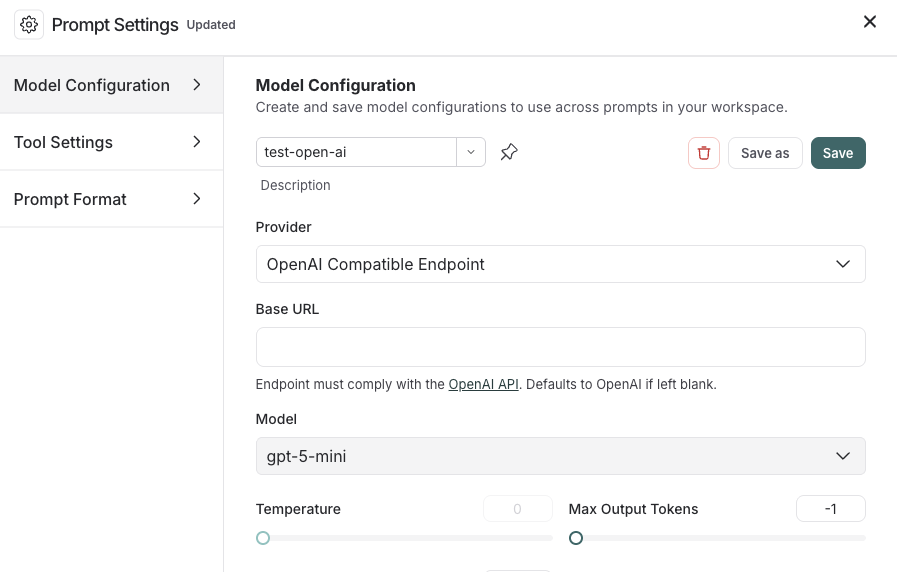
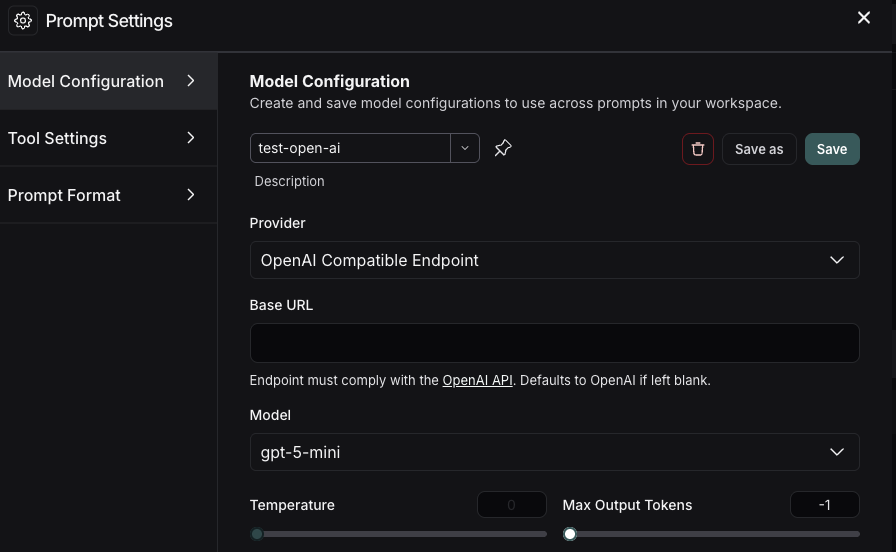
To access the **Prompt Settings** menu:
1. Under the **Prompts** heading select the gear icon next to the model name.
2. In the **Model Configuration** tab, select the model to edit in the dropdown.
3. For the **Provider** dropdown, select **OpenAI Compatible Endpoint**.
4. Add your OpenAI Compatible Endpoint to the **Base URL** input.
If everything is set up correctly, you should see the model's response in the playground. You can also use this functionality to invoke downstream pipelines as well.
For information on how to store your model configuration , refer to [Configure prompt settings](/langsmith/managing-model-configurations).
***
[Edit the source of this page on GitHub.](https://github.com/langchain-ai/docs/edit/main/src/langsmith/custom-openai-compliant-model.mdx)
[Connect these docs programmatically](/use-these-docs) to Claude, VSCode, and more via MCP for real-time answers.