> ## Documentation Index
> Fetch the complete documentation index at: https://langchain-5e9cc07a-preview-javaex-1765204202-a1f8093.mintlify.site/llms.txt
> Use this file to discover all available pages before exploring further.
# Use annotation queues
*Annotation queues* provide a streamlined, directed view for human annotators to attach feedback to specific [runs](/langsmith/observability-concepts#runs). While you can always annotate [traces](/langsmith/observability-concepts#traces) inline, annotation queues provide another option to group runs together, then have annotators review and provide [feedback](/langsmith/observability-concepts#feedback) on them.
## Create an annotation queue
To create an annotation queue:
1. Navigate to the **Annotation queues** section on the left-hand navigation panel of the [LangSmith UI](https://smith.langchain.com).
2. Click **+ New annotation queue** in the top right corner.
### Basic Details
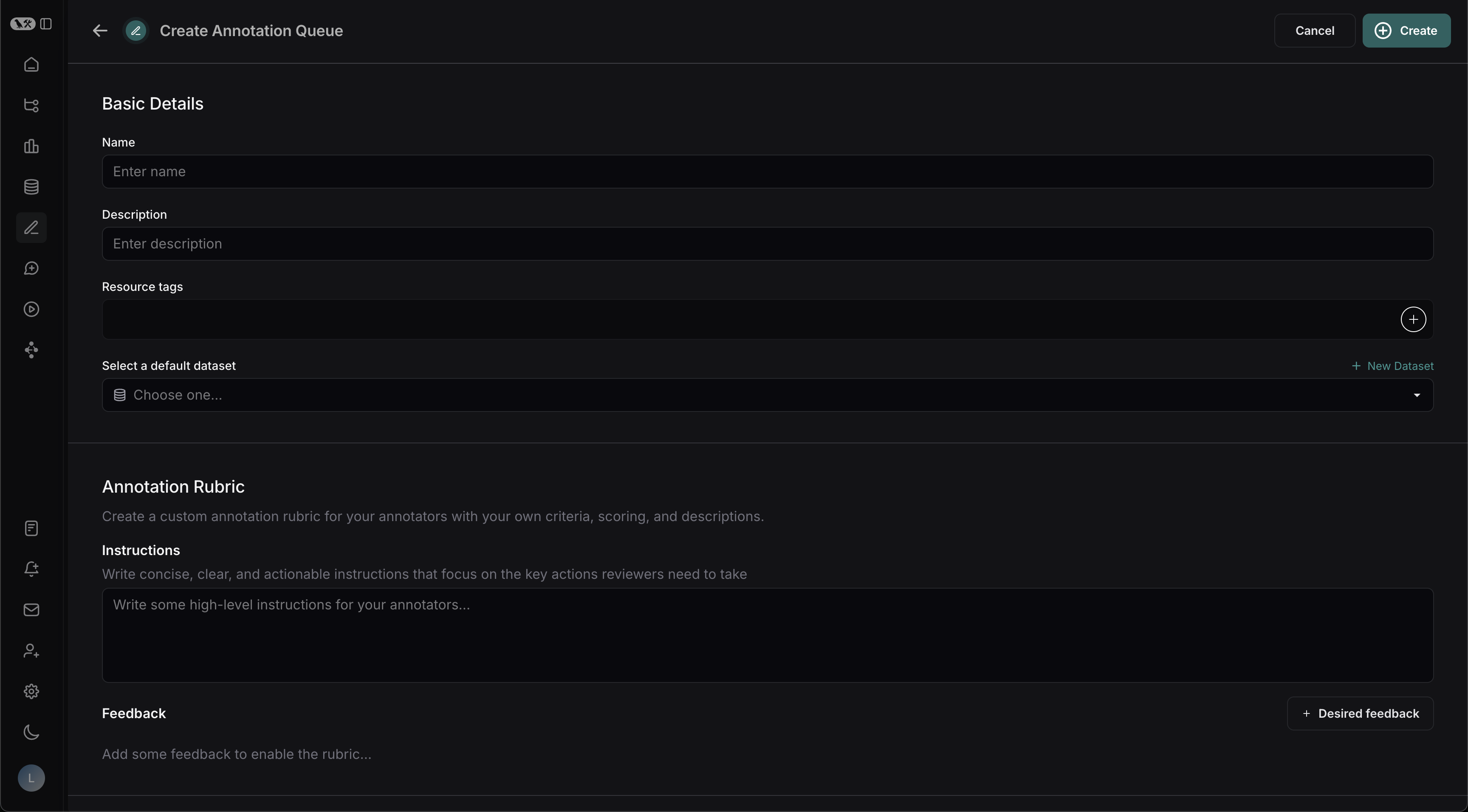
1. Fill in the form with the **Name** and **Description** of the queue. You can also assign a **default dataset** to queue, which will streamline the process of sending the inputs and outputs of certain runs to datasets in your LangSmith [workspace](/langsmith/administration-overview#workspaces).
### Annotation Rubric
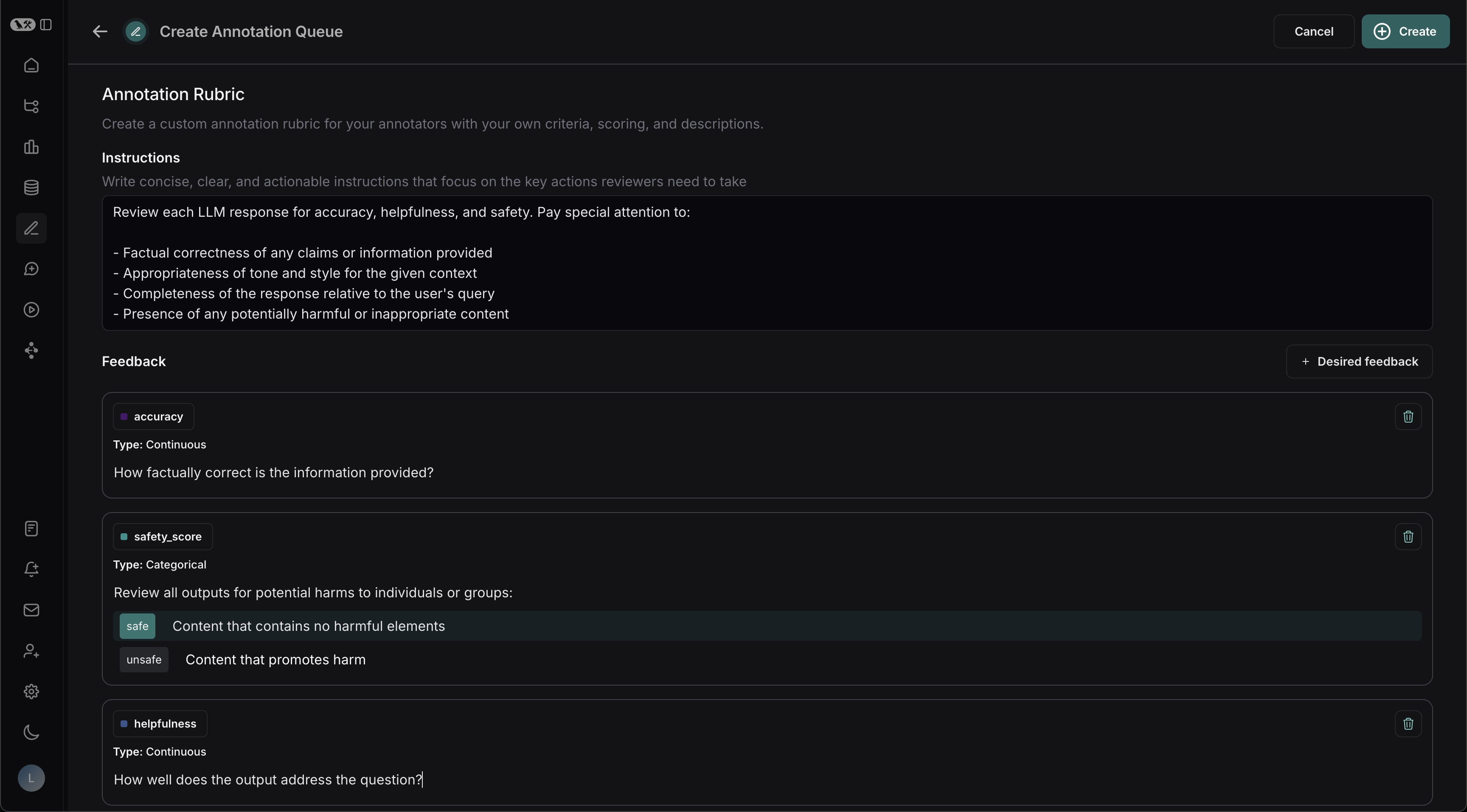
1. Draft some high-level instructions for your annotators, which will be shown in the sidebar on every run.
2. Click **+ Desired Feedback** to add feedback keys to your annotation queue. Annotators will be presented with these feedback keys on each run.
3. Add a description for each, as well as a short description of each category, if the feedback is categorical.
For example, with the descriptions in the previous screenshot, reviewers will see the **Annotation Rubric** details in the right-hand pane of the UI.
### Collaborator Settings
When there are multiple annotators for a run:
* **Number of reviewers per run**: This determines the number of reviewers that must mark a run as **Done** for it to be removed from the queue. If you check **All workspace members review each run**, then a run will remain in the queue until all [workspace](/langsmith/administration-overview#workspaces) members have marked their review as **Done**.
* Reviewers cannot view the feedback left by other reviewers.
* Comments on runs are visible to all reviewers.
* **Enable reservations on runs**: When a reviewer views a run, the run is reserved for that reviewer for the specified **Reservation length**. If there are multiple reviewers per run as specified above, the run can be reserved by multiple reviewers (up to the number of reviewers per run) at the same time.
We recommend enabling reservations. This will prevent multiple annotators from reviewing the same run at the same time.
If a reviewer has viewed a run and then leaves the run without marking it **Done**, the reservation will expire after the specified **Reservation length**. The run is then released back into the queue and can be reserved by another reviewer.
Clicking **Requeue** for a run's annotation will only move the current run to the end of the current user's queue; it won't affect the queue order of any other user. It will also release the reservation that the current user has on that run.
As a result of the **Collaborator settings**, it's possible (and likely) that the number of runs visible to an individual in an annotation queue differs from the total number of runs in the queue compared to another user's queue size.
You can update these settings at any time by clicking on the pencil icon in the **Annotation Queues** section.
## Assign runs to an annotation queue
To assign runs to an annotation queue, do one of the following:
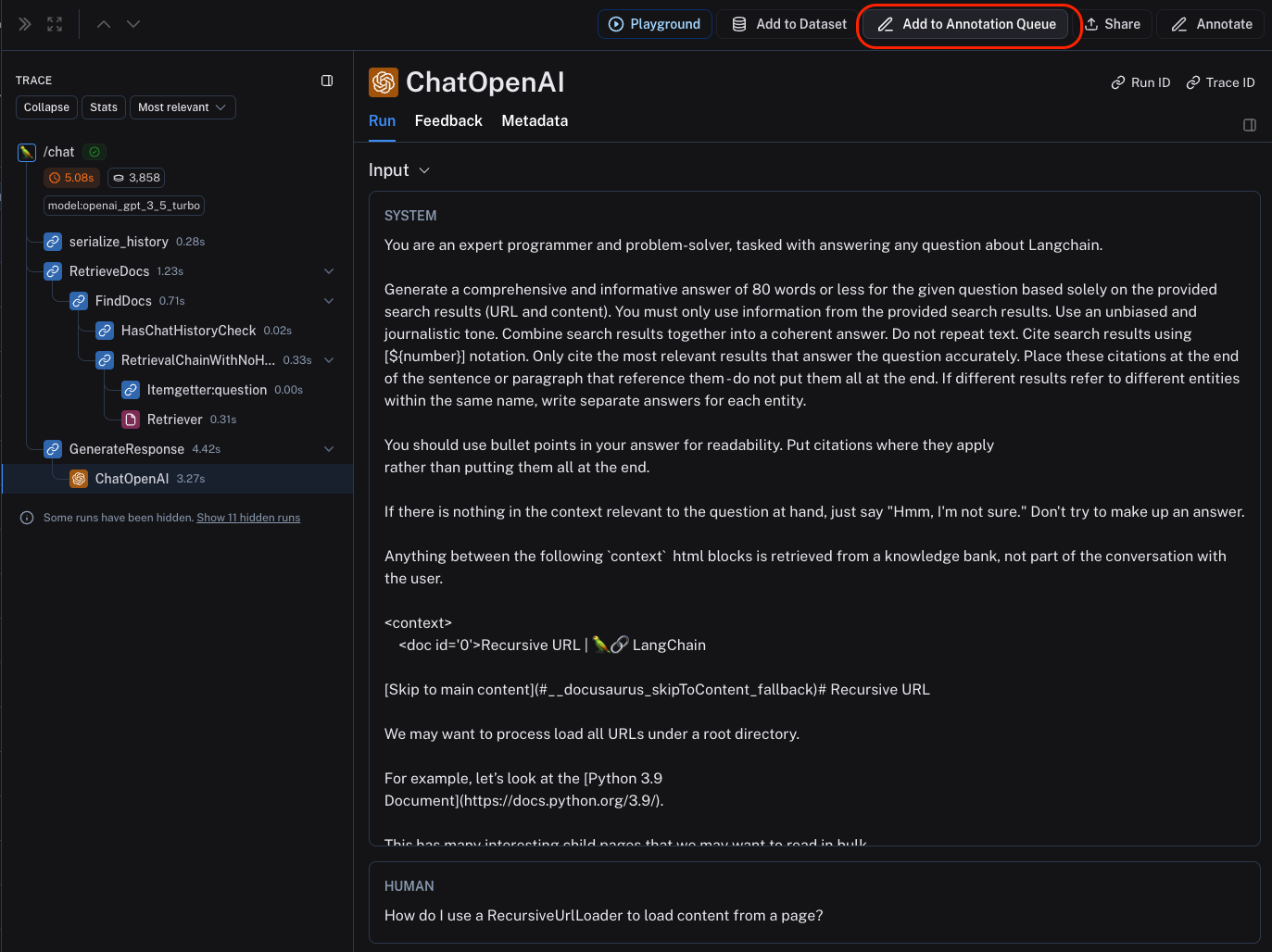
* Click on **Add to Annotation Queue** in top right corner of any [trace](/langsmith/observability-concepts#traces) view. You can add any intermediate [run](/langsmith/observability-concepts#runs) (span) of the trace to an annotation queue, but not the root span.
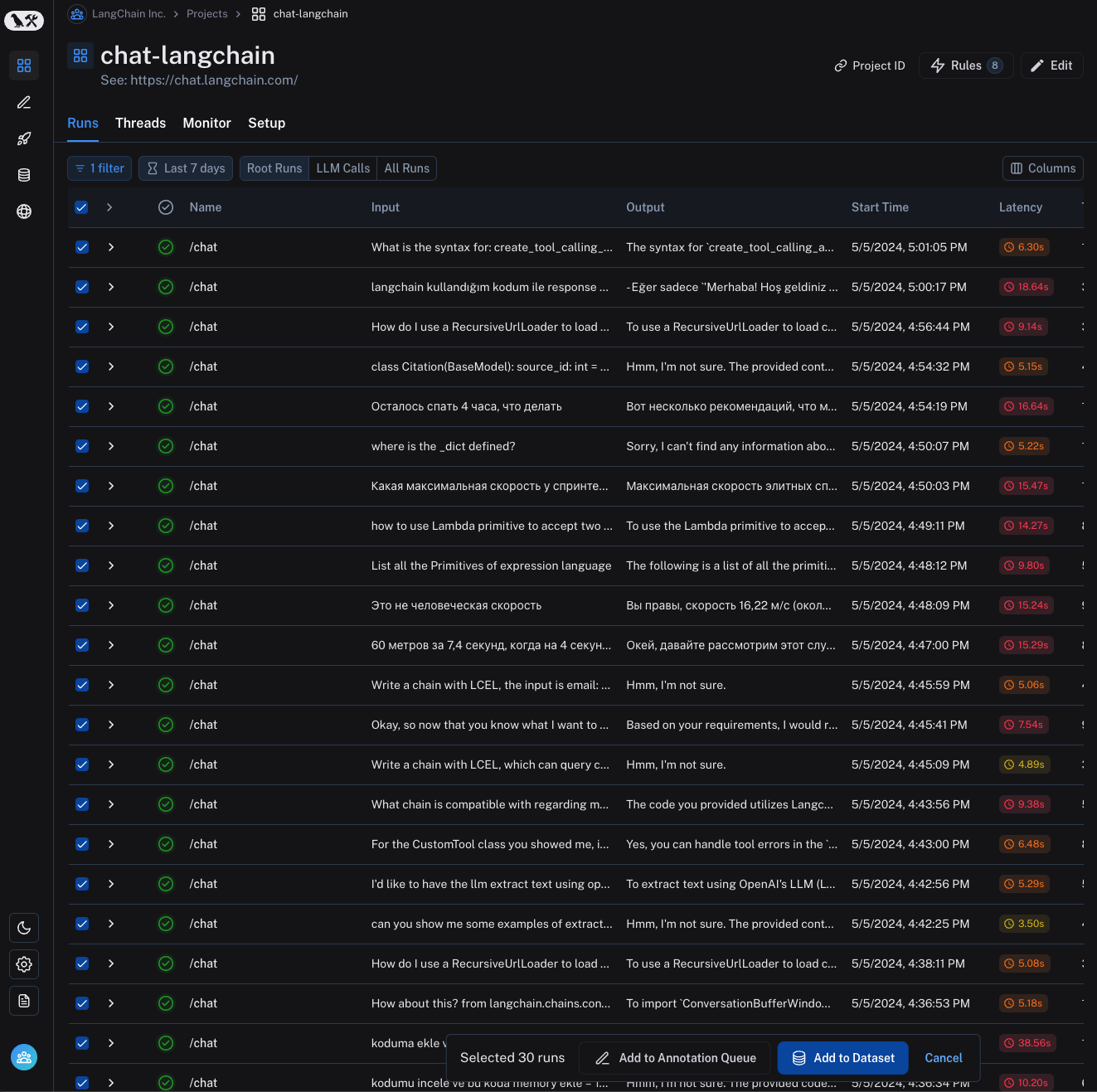
* Select multiple runs in the runs table then click **Add to Annotation Queue** at the bottom of the page.
* [Set up an automation rule](/langsmith/rules) that automatically assigns runs that pass a certain filter and sampling condition to an annotation queue.
* Navigate to the **Datasets & Experiments** page and select a dataset. On the dataset's page select one or multiple [experiments](/langsmith/evaluation-concepts#experiment). At the bottom of the page, click ** Annotate**. From the resulting popup, you can either create a new queue or add the runs to an existing one.
It is often a good idea to assign runs that have a particular type of user feedback score (e.g., thumbs up, thumbs down) from the application to an annotation queue. This way, you can identify and address issues that are causing user dissatisfaction. To learn more about how to capture user feedback from your LLM application, follow the guide on [attaching user feedback](/langsmith/attach-user-feedback).
## Review runs in an annotation queue
To review runs in an annotation queue:
1. Navigate to the **Annotation Queues** section through the left-hand navigation bar.
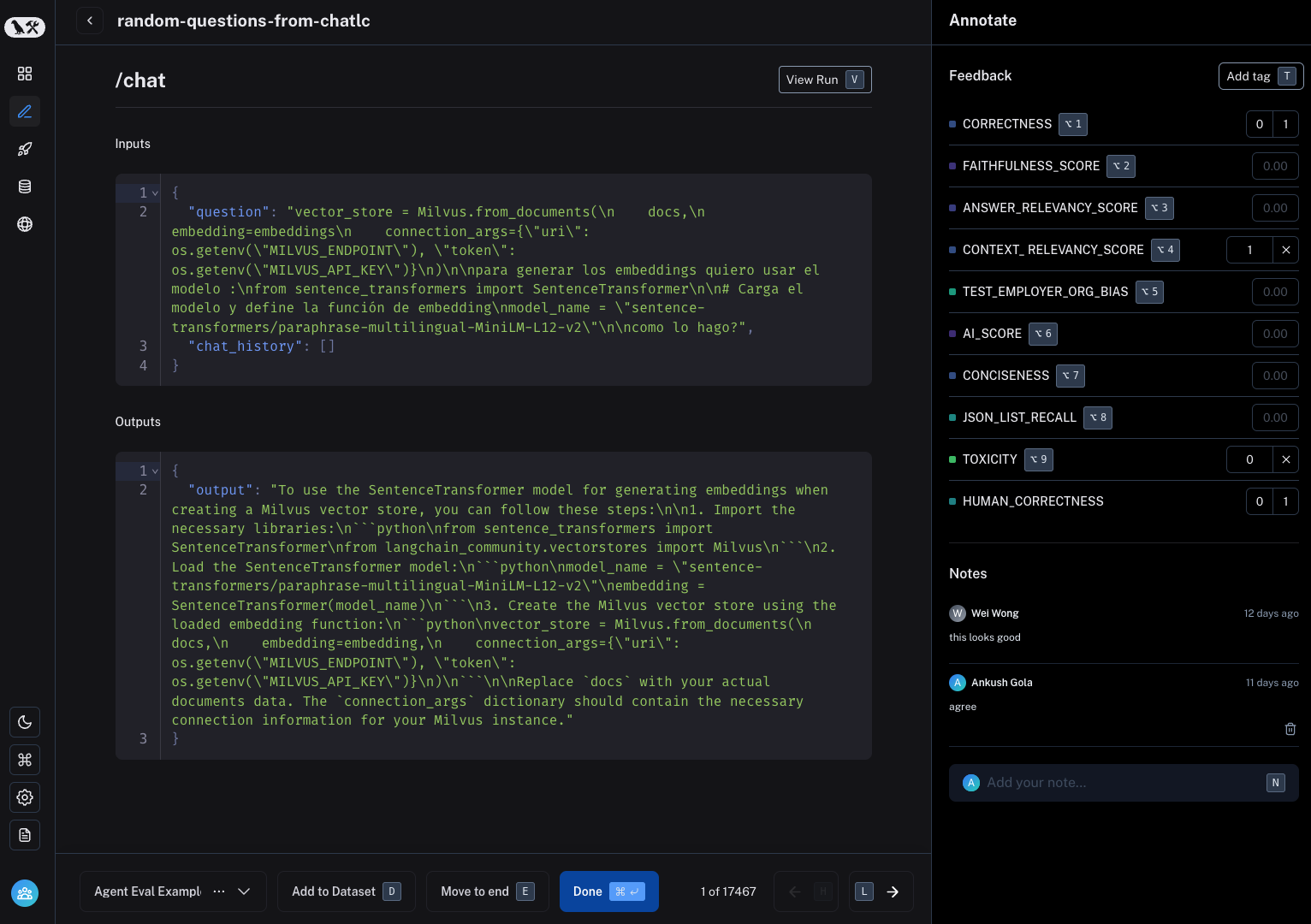
2. Click on the queue you want to review. This will take you to a focused, cyclical view of the runs in the queue that require review.
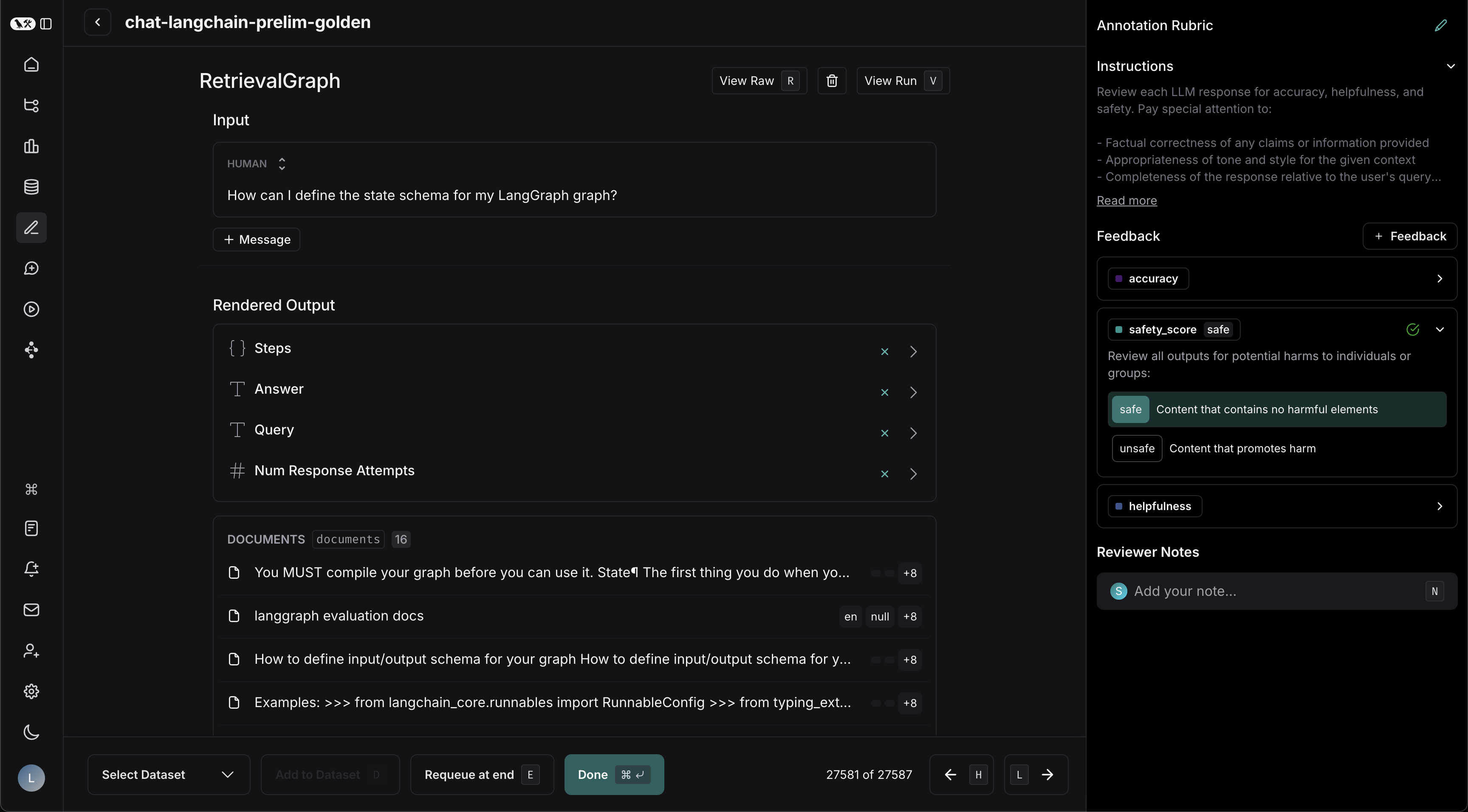
3. You can attach a comment, attach a score for a particular [feedback](/langsmith/observability-concepts#feedback) criteria, add the run to a dataset or mark the run as reviewed. You can also remove the run from the queue for all users, despite any current reservations or settings for the queue, by clicking the **Trash** icon next to **View run**.
The keyboard shortcuts that are next to each option can help streamline the review process.
## Video guide
***
[Edit the source of this page on GitHub.](https://github.com/langchain-ai/docs/edit/main/src/langsmith/annotation-queues.mdx)
[Connect these docs programmatically](/use-these-docs) to Claude, VSCode, and more via MCP for real-time answers.
 ### Basic Details
1. Fill in the form with the **Name** and **Description** of the queue. You can also assign a **default dataset** to queue, which will streamline the process of sending the inputs and outputs of certain runs to datasets in your LangSmith [workspace](/langsmith/administration-overview#workspaces).
### Annotation Rubric
1. Draft some high-level instructions for your annotators, which will be shown in the sidebar on every run.
2. Click **+ Desired Feedback** to add feedback keys to your annotation queue. Annotators will be presented with these feedback keys on each run.
3. Add a description for each, as well as a short description of each category, if the feedback is categorical.
### Basic Details
1. Fill in the form with the **Name** and **Description** of the queue. You can also assign a **default dataset** to queue, which will streamline the process of sending the inputs and outputs of certain runs to datasets in your LangSmith [workspace](/langsmith/administration-overview#workspaces).
### Annotation Rubric
1. Draft some high-level instructions for your annotators, which will be shown in the sidebar on every run.
2. Click **+ Desired Feedback** to add feedback keys to your annotation queue. Annotators will be presented with these feedback keys on each run.
3. Add a description for each, as well as a short description of each category, if the feedback is categorical.
 For example, with the descriptions in the previous screenshot, reviewers will see the **Annotation Rubric** details in the right-hand pane of the UI.
 ### Collaborator Settings
When there are multiple annotators for a run:
* **Number of reviewers per run**: This determines the number of reviewers that must mark a run as **Done** for it to be removed from the queue. If you check **All workspace members review each run**, then a run will remain in the queue until all [workspace](/langsmith/administration-overview#workspaces) members have marked their review as **Done**.
* Reviewers cannot view the feedback left by other reviewers.
* Comments on runs are visible to all reviewers.
* **Enable reservations on runs**: When a reviewer views a run, the run is reserved for that reviewer for the specified **Reservation length**. If there are multiple reviewers per run as specified above, the run can be reserved by multiple reviewers (up to the number of reviewers per run) at the same time.
### Collaborator Settings
When there are multiple annotators for a run:
* **Number of reviewers per run**: This determines the number of reviewers that must mark a run as **Done** for it to be removed from the queue. If you check **All workspace members review each run**, then a run will remain in the queue until all [workspace](/langsmith/administration-overview#workspaces) members have marked their review as **Done**.
* Reviewers cannot view the feedback left by other reviewers.
* Comments on runs are visible to all reviewers.
* **Enable reservations on runs**: When a reviewer views a run, the run is reserved for that reviewer for the specified **Reservation length**. If there are multiple reviewers per run as specified above, the run can be reserved by multiple reviewers (up to the number of reviewers per run) at the same time.
 * Select multiple runs in the runs table then click **Add to Annotation Queue** at the bottom of the page.
 * [Set up an automation rule](/langsmith/rules) that automatically assigns runs that pass a certain filter and sampling condition to an annotation queue.
* Navigate to the **Datasets & Experiments** page and select a dataset. On the dataset's page select one or multiple [experiments](/langsmith/evaluation-concepts#experiment). At the bottom of the page, click **
* [Set up an automation rule](/langsmith/rules) that automatically assigns runs that pass a certain filter and sampling condition to an annotation queue.
* Navigate to the **Datasets & Experiments** page and select a dataset. On the dataset's page select one or multiple [experiments](/langsmith/evaluation-concepts#experiment). At the bottom of the page, click **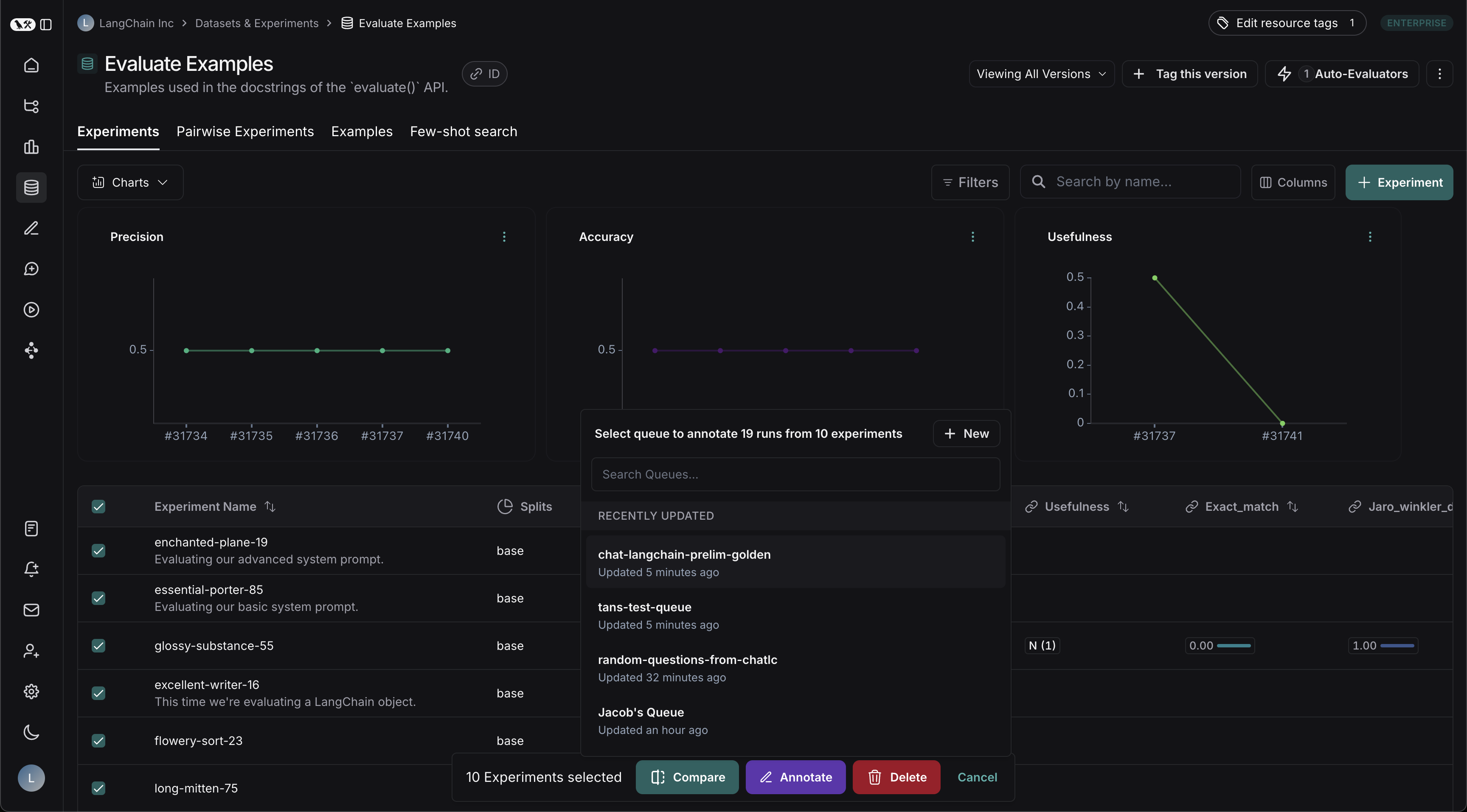
 ## Video guide
***
## Video guide
***